




Ease of Use
Standard Windows User Interface
Because usability is critical for software, one of the most important features of Deep-Sky Planner is its user interface. It is designed following Microsoft's Windows App Certification guidelines, so it has the consistent look and feel that you expect of Windows products. Using it is easy and straightforward. Version 9 includes extensive enhancements to the user interface, including support of scaling for high resolution displays (4k monitors) and dark and light themes.
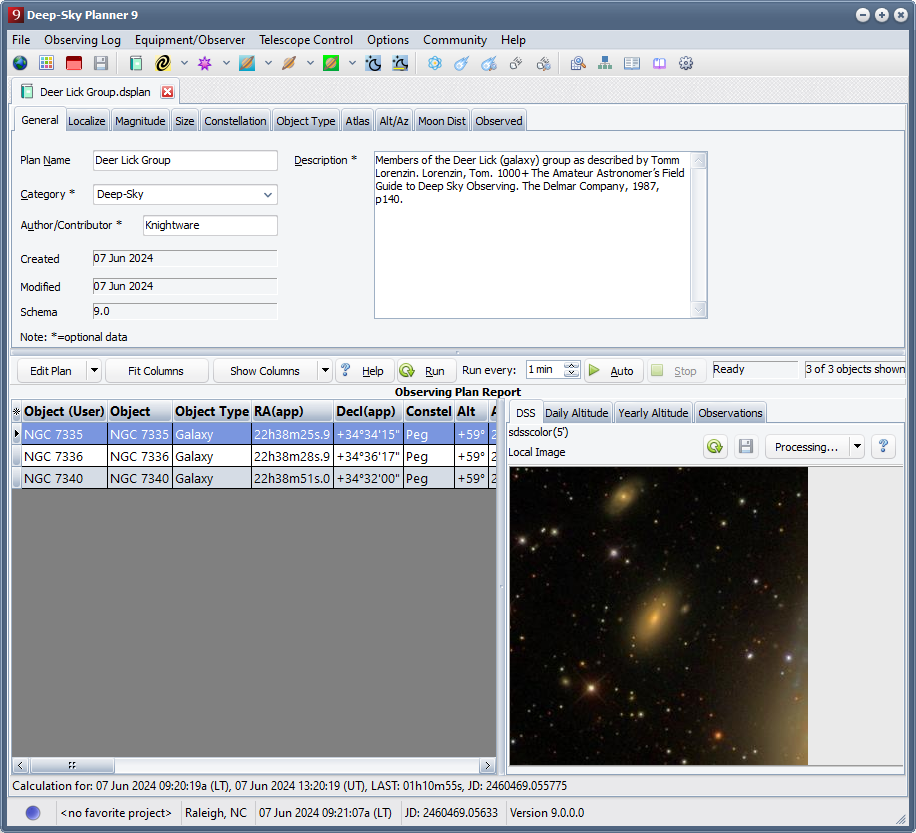 Light app style (click to enlarge) |
|
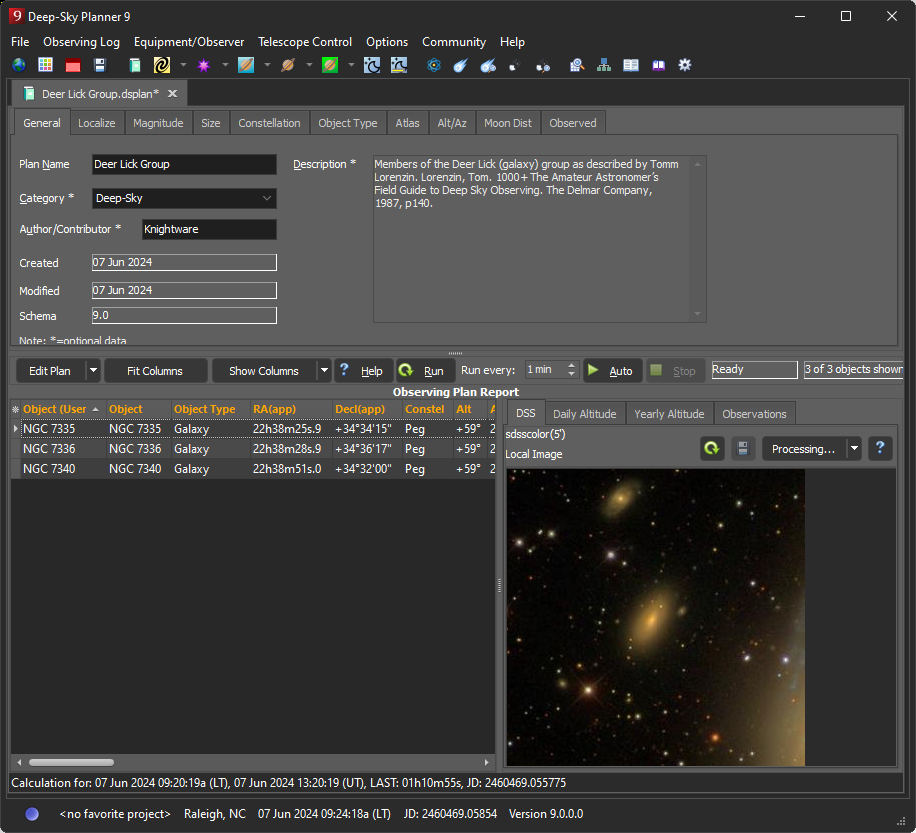
In Deep-Sky Planner, you open a document which displays the parameters you might need to request a calculation for planetary information or to search deep-sky and stellar catalogs. Different types of documents accommodate different types of requests. Once you have set the parameters, you perform the search or calculation and the result is presented in the same document window. You can edit the parameters and repeat the process as desired, and the parameters can be saved to a file for future use. You can print the document (including the reported data), save it as formatted text, HTML or delimited text (CSV). You can also open multiple documents at once which is nice for researching more complex situations.
There are many convenience features included that are typical of Windows products:
- a customizable tool bar
- tool buttons for nearly every product function
- tool button hints
- view open documents in multiple tabs
- re-sizeable panes in document tabs
- copy and paste objects from search reports to observing plan documents
- most-recently used file list
- context-sensitive HTML help accessible with F1 key
Opening document(s) by dragging and dropping from Windows Explorer or the desktop onto Deep-Sky Planner is also supported.
Works with Windows 11 and 10: Pain Free UAC
Deep-Sky Planner 9 is designed to 'play nicely' with the security scheme in Windows 10 and 11: it can run from either an administrative or standard user account with User Account Control turned on. Three features require administrative privileges to run: choosing the ASCOM driver for your telescope, setting system time using a time service or a telescope mount, and using Smart Chart Interoperation™ with Starry Night and Deep-Sky Planner. You may need administrative privileges when Using Smart Chart Interoperation™ with TheSky 6/X/64 and Redshift on 64-bit Windows. Other than these situations, UAC stays happy. You can resolve any of these situations by running Deep-Sky Planner as Administrator.
Two installation modes are available - one for individual user(s) and one for all users of the computer. Product maintenance (updating) can be done without administrative privileges when installed in individual user mode. Knightware recommends installing for individual user accounts.
Windows Integration
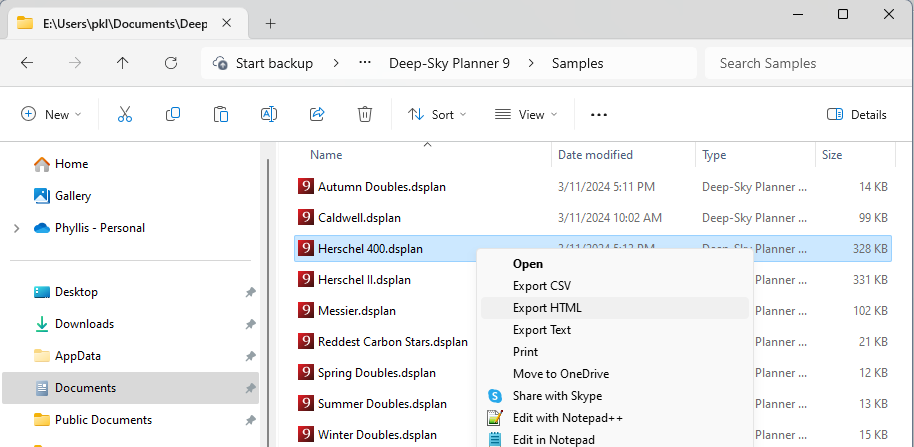
Open, print or export
a document
with Explorer
Deep-Sky Planner supports several Windows Explorer integration features that make opening, printing and exporting CSV, HTML or formatted text reports from a saved document a snap. All of these functions can be done from inside Deep-Sky Planner but they can also be done directly from Windows Explorer.
The screen shots to the right depict these capabilities using Windows 11, but they work the same way with Windows 10 too. Note that the document file(s) must be created and saved previously with Deep-Sky Planner, and that open, print and export functions are available from within Deep-Sky Planner too.
Opening a document from Windows Explorer
To start Deep-Sky Planner and open a document, select the document in Windows Explorer and click the Open button on the tool bar.
Printing a document from Windows Explorer
To print a Deep-Sky Planner document, select the document in Windows Explorer and click the Print button. The usual Print dialog is displayed for you to select a printer and any special printing options such as landscape mode.
Exporting a document from Windows Explorer
To export a report from a Deep-Sky Planner document, right-click on the document to display the context menu and select an export format for the report (e.g., Export HTML). You can also export a report to CSV or text format, or open or print a document using this method.
Customized Reporting
Deep-Sky Planner permits customization of reports whether the report is displayed on screen, printed or exported to HTML, formatted text or delimited text. Customizations include data formatting, report content and layout formatting, font and color choices.
Data Formats |
|
| Dates | Examples: Dec 31 2005, 31 Dec 2005, 2005 Dec 31, 12/31/2005 etc |
| Times | 12 hour or 24 hour, local or universal |
| RA | Examples: 01h.234, 01h02m.3, 01h02m03s |
| Decl | Examples: +01°.23, +01°02'.3, +01°02' |
| Latitude/Longitude | Examples: 89°.99 N, 89°59'59" N |
| Altitude | Examples: +10°.2, +10°02'.3, +10° |
| Azimuth | Examples: 100°.2, 100°02'.3, 100°; Reckoned from north or south |
Report Content Formatting
Any data item (column) can be switched on and off in reports. Columns can also be moved. These settings are retained and can be changed at any time. Preconfigured layouts are also available with a mouse click.
 Video snip: Customizing your report view.
Report Layout Formatting
Most reports are presented as tabular text. The columns can be resized for optimal viewing and printing, or you can use the Fit Columns feature which calculates the minimum column size necessary for each column's content. In addition, columns can be moved to any order that you wish. Column ordering is retained and can be changed at any time.
Report Styling
Users can choose font and color combinations that suit individual needs. These stylesheets can be saved and exchanged with other users online through the Deep-Sky Planner Community.
Documentation
Deep-Sky Planner provides a comprehensive online help file and user's manual. The help file is provided in HTML Help format which allows you to use the Full Text Searching facility. The user's manual is provided in Adobe Reader (pdf) format.
Deep-Sky Planner provides context sensitive help for all menus, dialog boxes, and document windows. These are accessed by pressing F1 or by pressing the Help button in each document or dialog box.
Astronomical Algorithms and Accuracy
Deep-Sky Planner uses the software library that accompanies Jean Meeus' Astronomical Algorithms. A few problems in that software have been found and fixed in Deep-Sky Planner.
The accuracy of deep-sky and stellar data relies on the original catalogs: size, magnitude, etc are taken directly from the catalogs; positions are precessed to epoch and mean equinox of J2000.0 where necessary.
The accuracy of calculated data has received special attention. Calculated data include planetary events and ephemerides, apparent positions of objects, ephemerides of visual binary systems, predicted extrema of variable stars, and rise, set, transit times and angles for deep-sky and stellar data. The accuracy of each type of calculation is documented so that users can be confident in the quality of the calculations.